

Why Is My Power BI Merge Not Working?
Merging in Power Query, whether in Excel or Power BI, is one of the core skills for your average data transformationalist (is that a word?!) In essence, the purpose of a merge is to bring together two datasets so that the information of both datasets is joined in a single, physical table. To make sure the correct information is on each row in our new table, a column (or multiple columns) of data, common to both datasets, is used as a ‘key’ to match the correct rows together. Think automated VLOOKUPs but with a fundamental difference (see here for a bit more on that).
However, because Power Query is case, character and space sensitive, any difference in any of those data properties between the key columns that you use to perform the merge between the dataset, will result in rows not matching correctly. In this post we go through the 3 ways why merges are not working properly.
Resources
Symbols


Video Chapters
- 00:26 – Summary of the merge function
- 00:58 – How a merge might not work as expected
- 01:30 – Demonstration of a correct merge
- 02:58 – Mismatch in cases prevents a correct merge and how to fix it
- 07:02 – Mismatch in data type prevents a correct merge and how to fix it
- 09:29 – How trailing spaces prevents a correct merge and how to it
Short On Time?
When a merge doesn’t match two datasets correctly, there are three things that you need to check, a) the case of any text in the key column, b) the datatype of values in the key column c) the dreaded trailing space in the key columns.
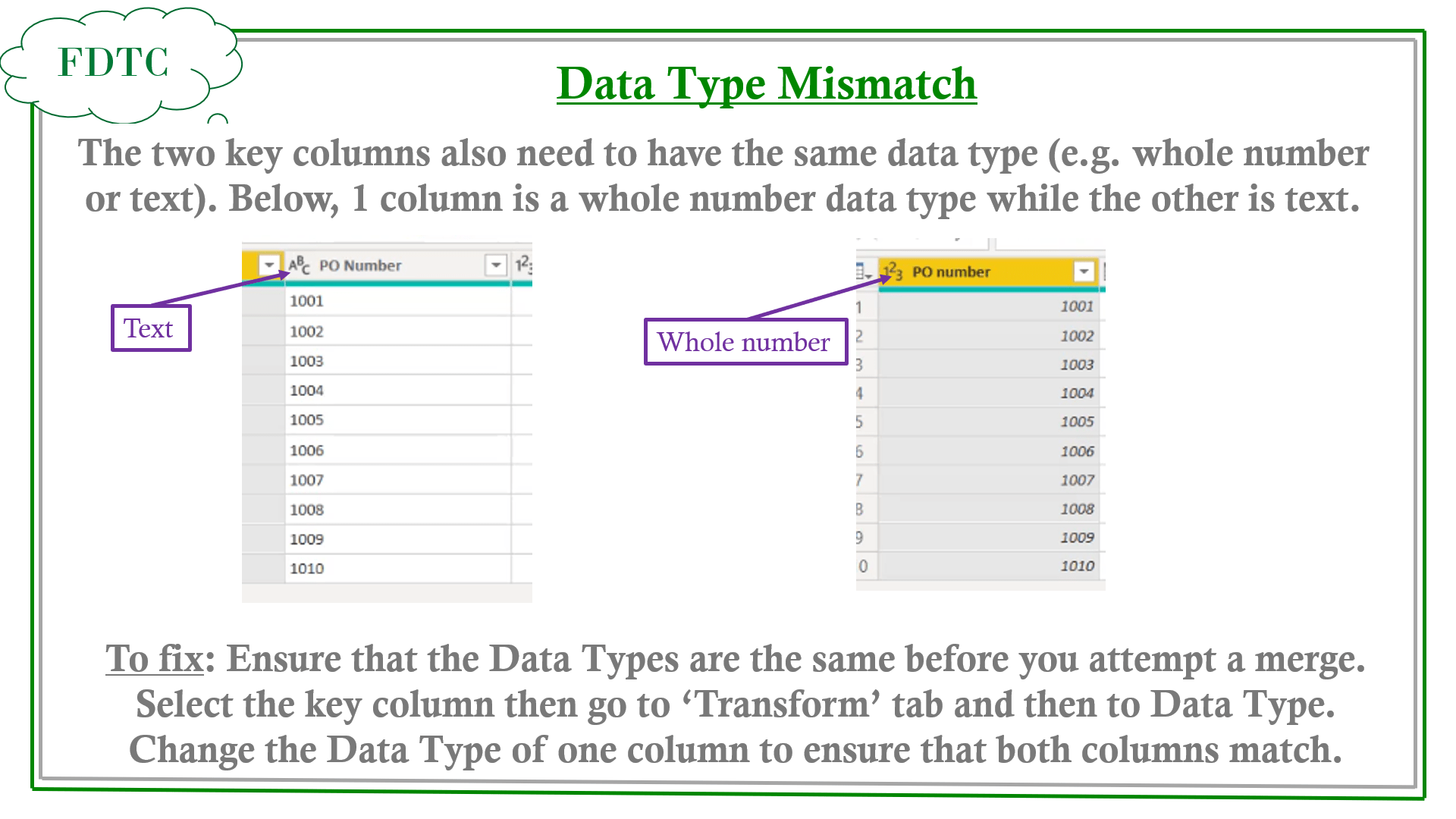
Instructions
a) Select your key column where you want to change the datatype
b) On the Transform tab, go to the Any Column section of the ribbon
c) Find the Data Type section of the ribbon and select the desired data type
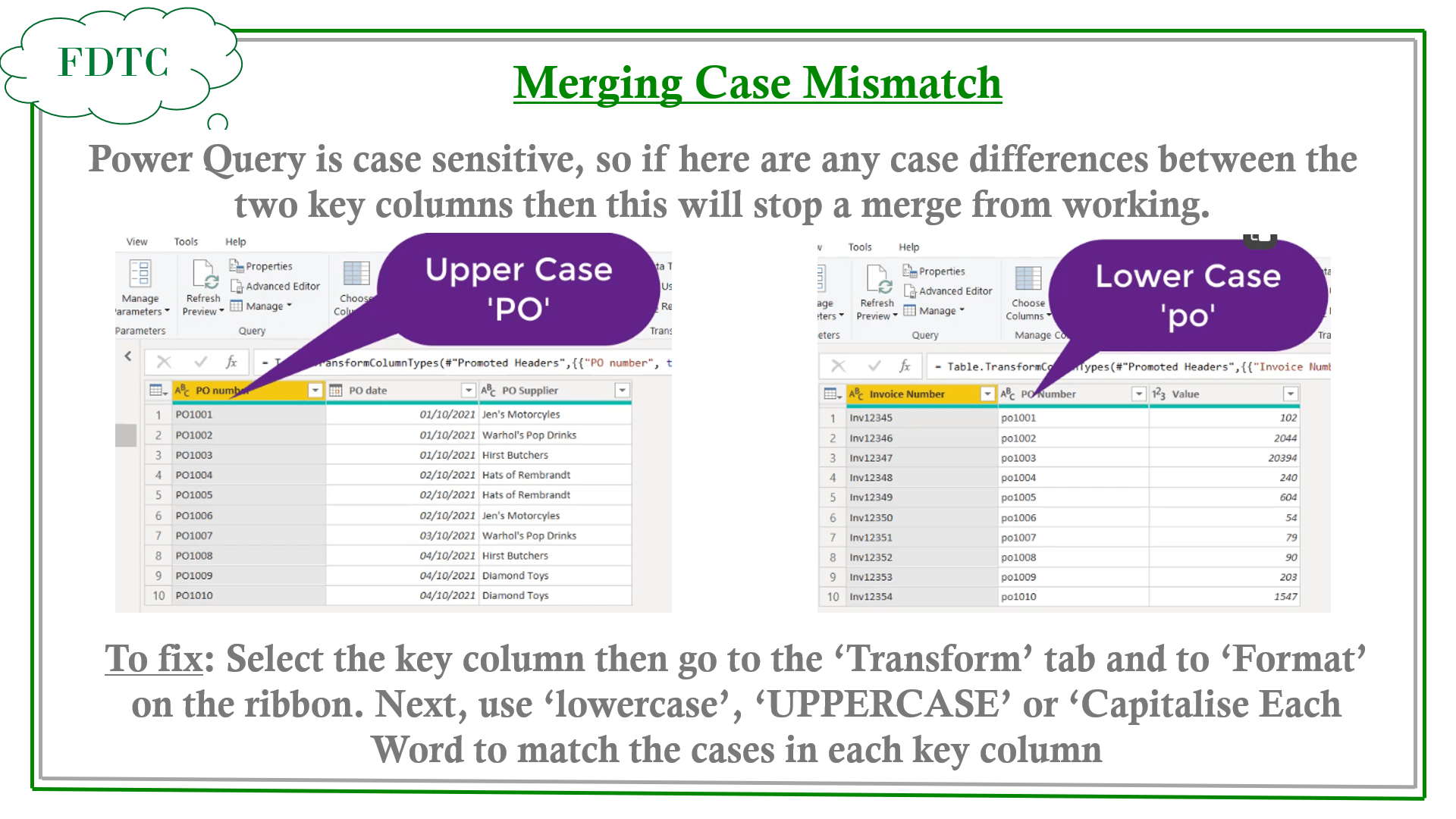
Instructions
a) Left click the key column header,
b) then select the ‘Transform’ tab
c) Use ‘lowercase’, ‘UPPERCASE’ or ‘Capitalise Each Word’ to align the cases of each key column

Instructions
a) Click on the value that you think has a trailing or leading space. Review the popup section at the bottom of the screen to check if there is a space. Once identified, left click the header column.
b) In the ‘Transform’ Tab select the ‘Format’ dropdown
c) Select ‘Trim’
…and a little more
Refreshing a merge – sometimes you make changes to the applied steps of a query above a merge, that then end up causing the merge to fail. Changing data types is key for this one.
If you want find out if a change you have made to a previous step will rectify the problem with the merge, go to the merge step, click on the cog, and in the resulting merge menu, click on the refresh button in the top right hand corner..


You must be logged in to post a comment.